Before you start
What the Protect page does, the two things your agent needs to send, and how a rule goes from draft to enforced.
The in/guard/out Protect page is where you decide what an agent must never do – leak HR data, act on a web page’s instructions, pay a large invoice unattended. It works from the tools your agent actually used, and it shows you what a rule would have done on past runs before anything is enforced.
1. Send your agent’s traffic through in/guard/out
Point your agent’s OpenAI or Anthropic client at your in/guard/out base URL with an in/guard/out key. Each agent should have its own key: rules are set per key, so an HR assistant and an ops agent can have completely different rules.
Add one header to every request in an agent run, so the requests of one task are tied together:
client = OpenAI(base_url="https://<your in/guard/out host>/v1", api_key="gr-...")

client.chat.completions.create(
    model="gpt-5.6-terra",
    messages=messages,
    tools=tools,
    extra_headers={"X-Guardrails-Session-Id": run_id},   # one id per agent run
)
Why the session id matters. A confidential room only lasts as long as the run. Without the header, each request is judged on its own, and an agent that trims its history can forget it read the HR record.
Two more headers are only needed for specific setups – subagents (X-Guardrails-Parent-Session-Id) and multi-user chat apps (X-Guardrails-Reader, see Keep confidential data in).
2. Open the Protect page
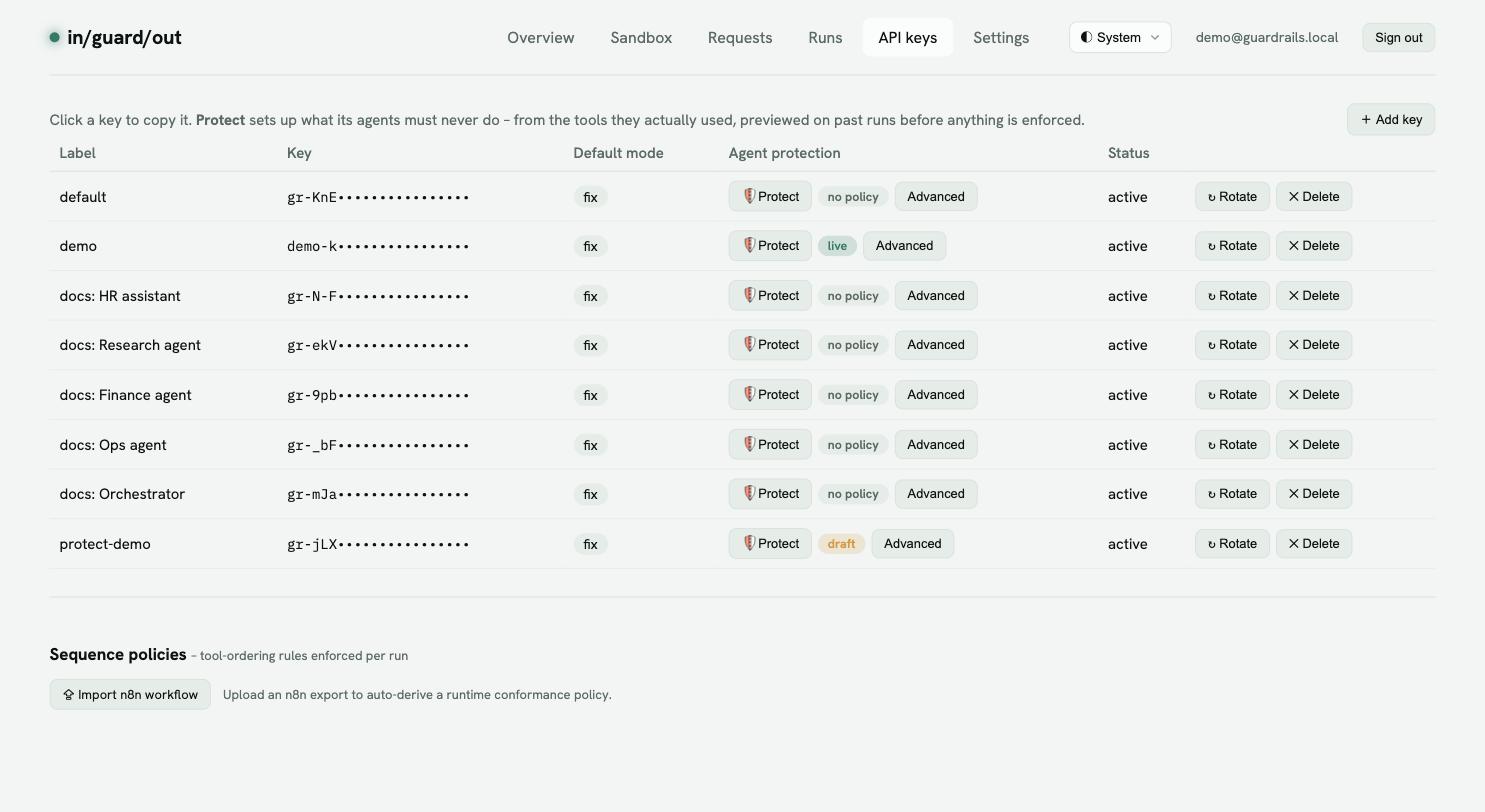
Go to API keys and click 🛡 Protect next to the agent’s key. The chip beside it shows where that key’s rules are: no policy, draft, watching or enforcing.
The page reads top to bottom:
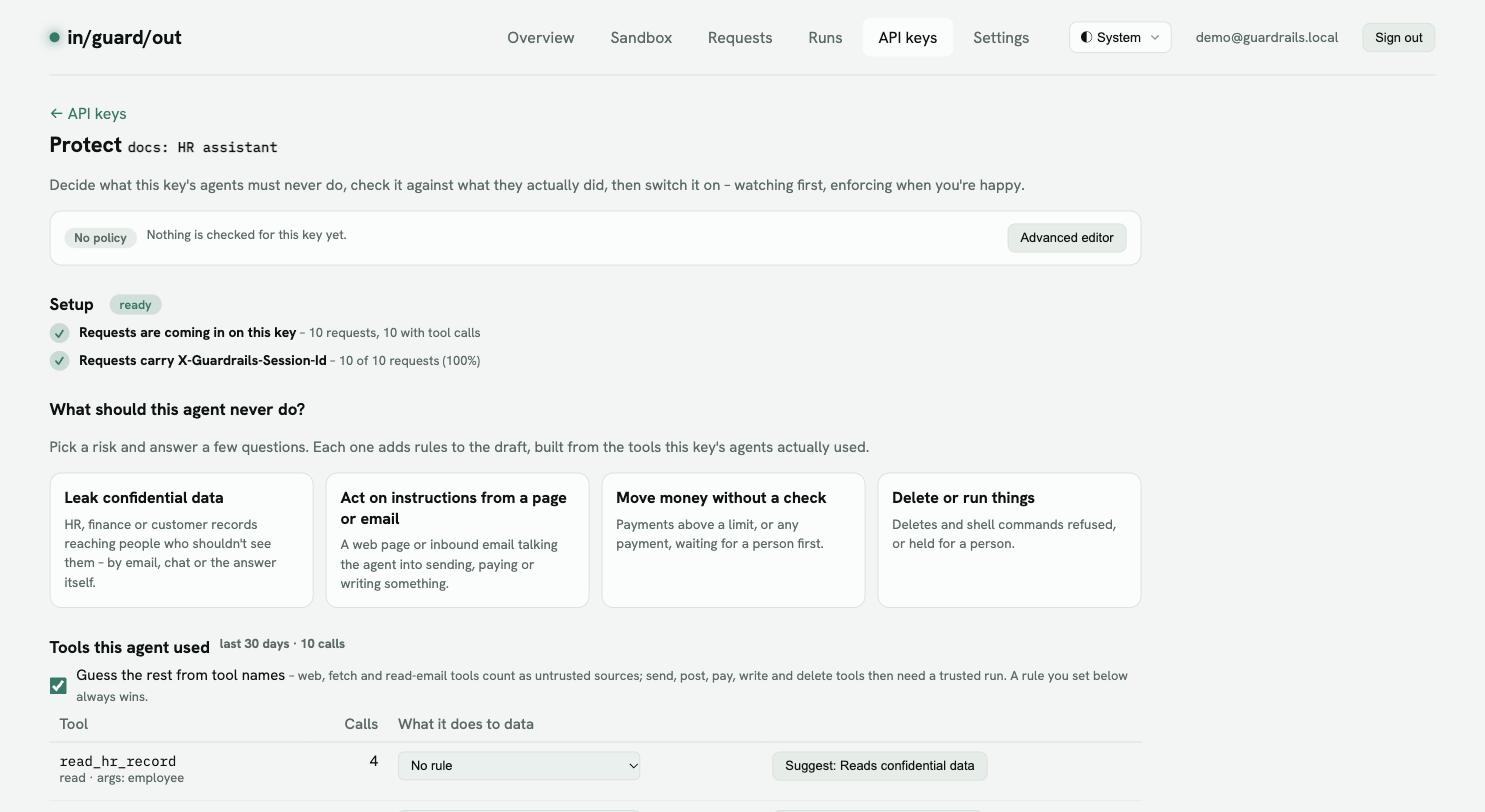
- Status bar – what is live, and the buttons to publish and enforce.
- Setup – a checklist of what in/guard/out can see: traffic, session ids, the settings your rules need.
- What should this agent never do? – four risks. Each asks a few questions and writes the rules for you.
- Tools this agent used – every tool from the last 30 days, with a one-click suggestion for each.
- Preview – replays the agent’s past runs against your draft.
3. Draft → preview → watch → enforce
Every change lands in a draft. A draft is never enforced, so you can try anything.
| Step | What happens | Is anything blocked? |
|---|---|---|
| Draft | You add rules. | No |
| Preview | Your recent runs are replayed against the draft. | No – it only reports |
| Publish – start watching | The rules go live, but only flag. | No |
| Start enforcing | The rules block. | Yes |
Watching and enforcing belong to this key’s rules only. The key’s other guardrails (PII screening, content safety) keep their own prevent / fix mode.
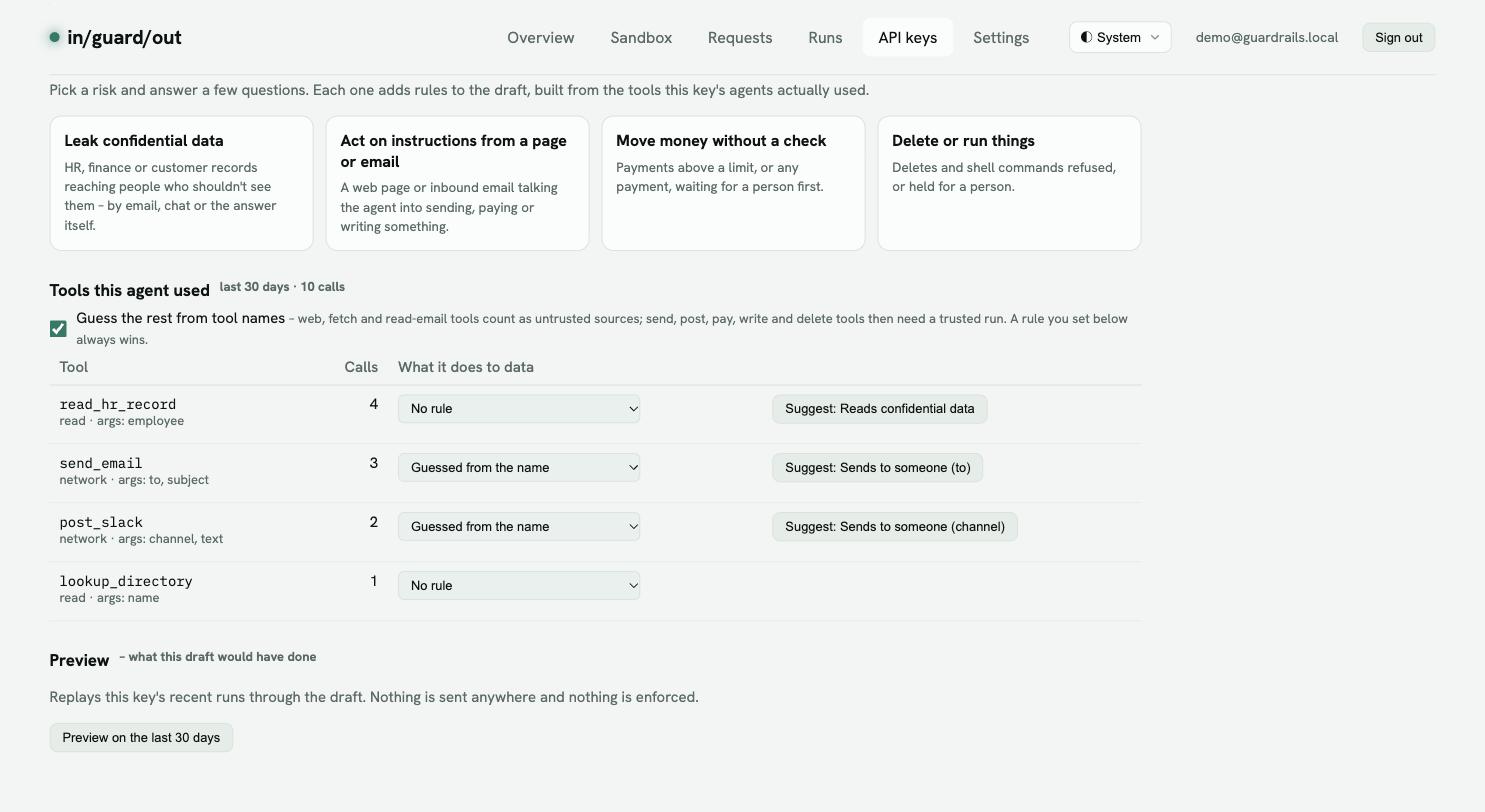
If the status says “not active”. A rule set needs a setting to be switched on – usually Flow labels in Settings. The status bar and the setup checklist both offer a Turn on button.
Which guide do I need?
| Your agent… | Read |
|---|---|
| reads HR, finance or customer records and can email, post or answer people | Keep confidential data in |
| browses the web, reads inbound email or tickets, and can act | Don’t let a web page drive an action |
| pays invoices or issues refunds | Hold large payments for a person |
| deletes files or runs commands | Block deletes and shell commands |
| hands work to subagents | Let a subagent read sensitive data |