Keep confidential data in
An HR assistant reads salaries to answer managers. Make sure what it reads only reaches the people allowed to see it – by email, in Slack, or in the chat answer itself.
Use this when your agent reads something confidential – HR records, finance figures, customer files – and can also send email, post messages or answer people.
What you’ll set up is a room: a named group of people who may receive what was read from it. Once a run reads an HR record, everything it sends afterwards is checked against the room. A recruiter outside the company is refused; People Ops gets the email.
1. Start the flow
On the agent’s Protect page, click Leak confidential data.
2. Name the data and pick the tools that read it
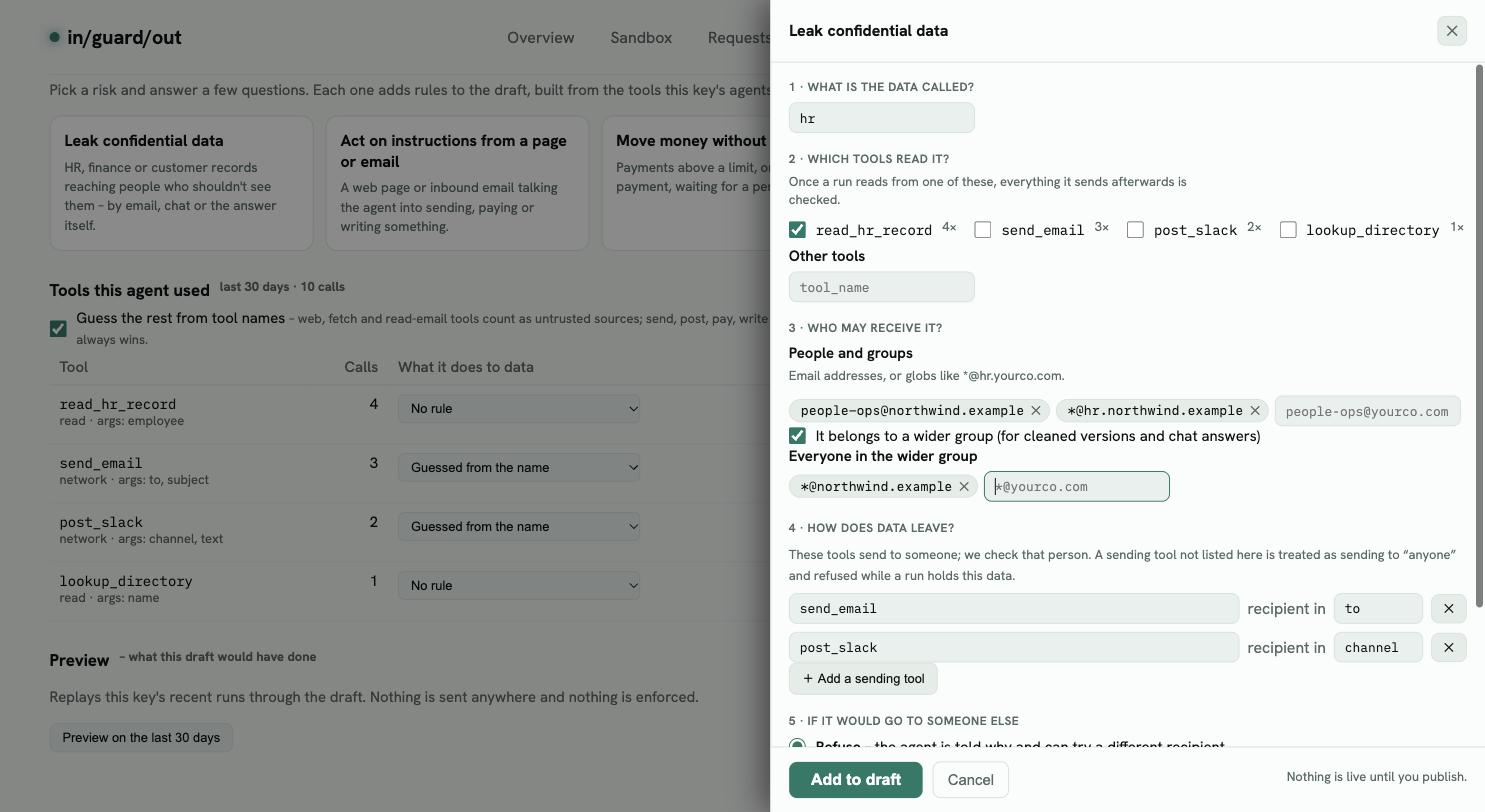
Type a short name – hr, finance, customers. Tools whose name matches are ticked for you (hr ticks read_hr_record). Tick any other tool that reads the same data.
3. Say who may receive it
Under People and groups, add addresses or patterns and press Enter after each:
- an exact address:
people-ops@northwind.example - everyone at a domain:
*@hr.northwind.example - a Slack channel the data may be posted to:
#people-ops
Leave It belongs to a wider group ticked and add your company domain (*@northwind.example). The wider group is where cleaned versions and chat answers may go.
4. Check how data leaves
Section 4 lists the tools that send to someone, and which argument names the recipient – send_email → to, post_slack → channel. These were found in the agent’s own calls. Add any sending tool that’s missing: a sending tool that isn’t listed counts as sending to anyone, and is refused while a run holds this data.
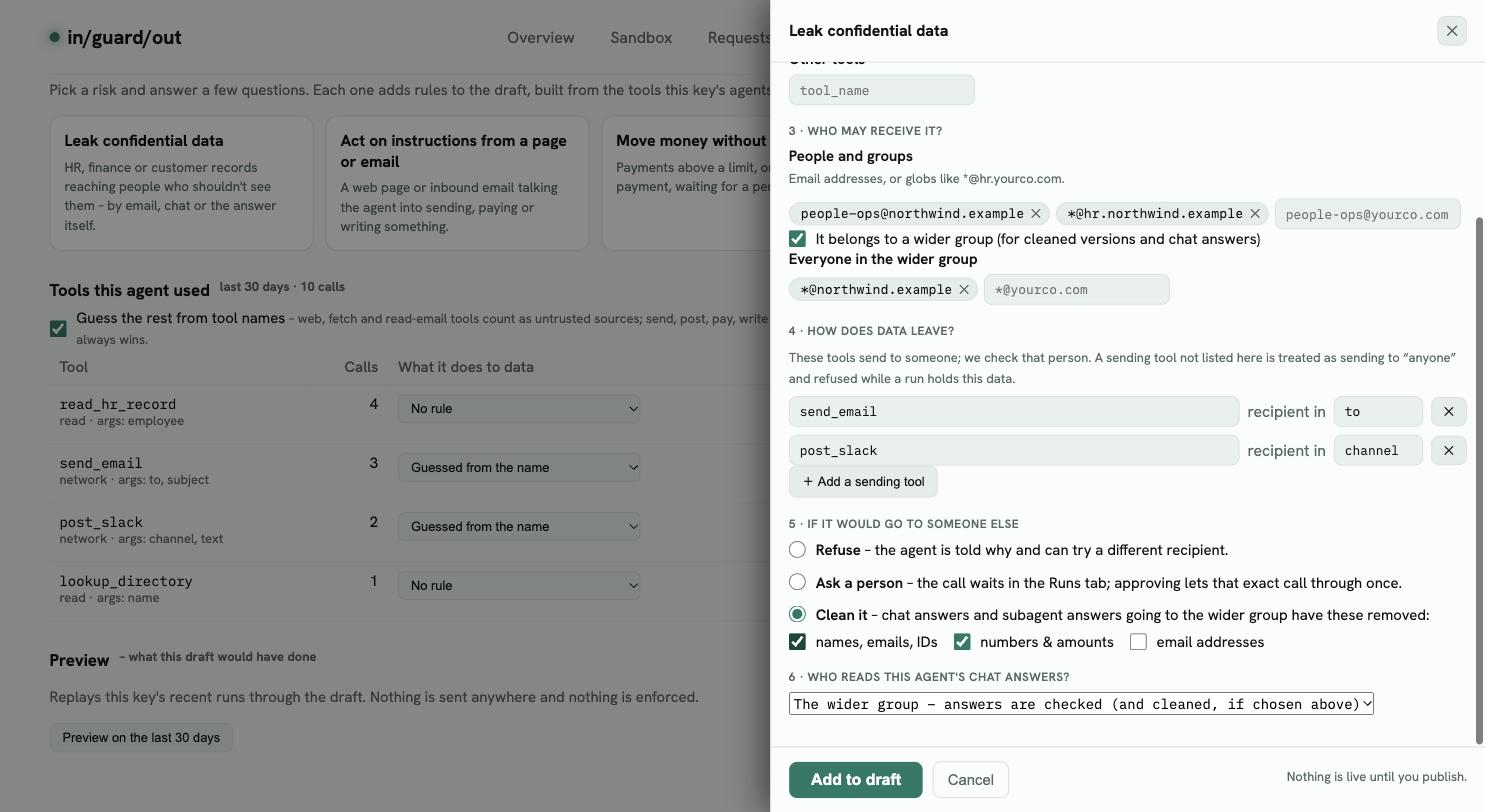
5. Decide what happens otherwise
| Choice | What it does | Good for |
|---|---|---|
| Refuse | The call is blocked; the agent is told why and can pick another recipient. | Data that must never leave the group |
| Ask a person | The call waits in the Runs tab until someone approves it. | Sharing that is sometimes fine – an auditor, a lawyer |
| Clean it | Chat answers and subagent answers to the wider group have names, numbers or emails removed. | Letting managers get a useful answer without the salary |
Then choose who reads this agent’s chat answers. The wider group means a manager asking “is Alice due a review?” gets “Yes, her review is due” – with the salary removed.
Multi-user chat apps. If one key serves many end users, send the user’s email on each request as
X-Guardrails-Reader: alice@northwind.example. Answers are then checked against that person instead of the whole group.
6. Add to draft and review
Click Add to draft. The status bar now says Draft – nothing is live yet.
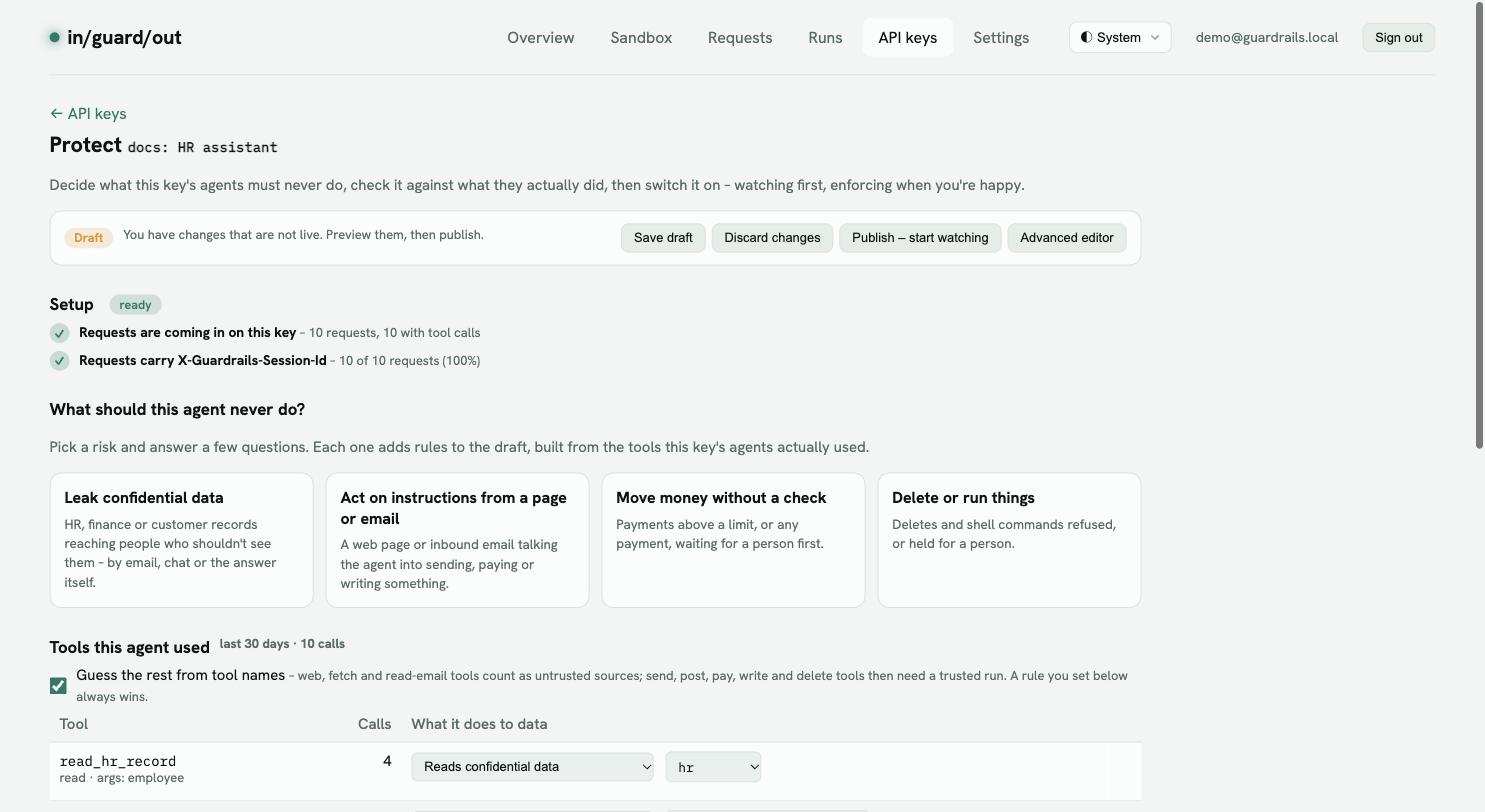
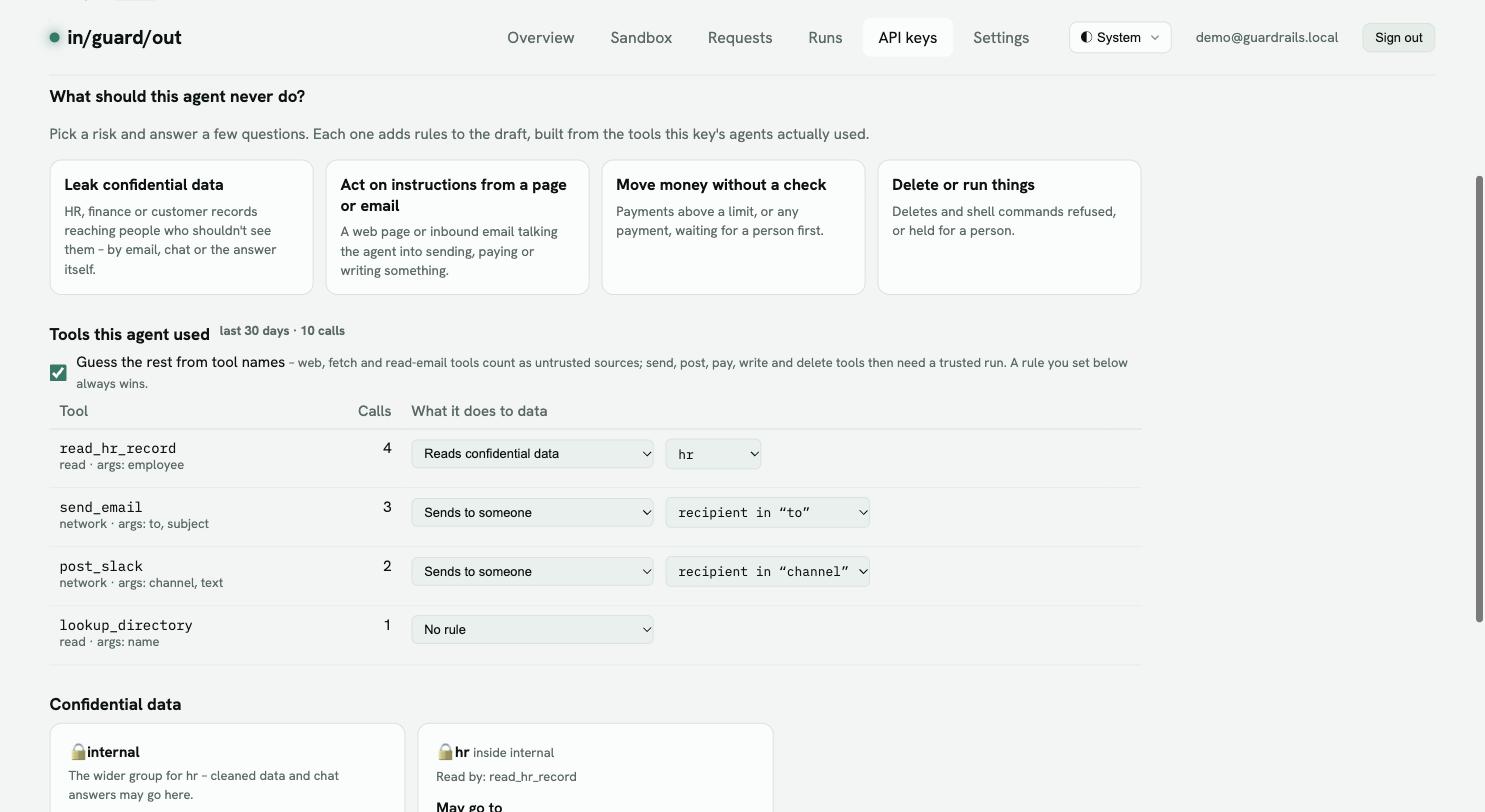
The tools table shows the rules that were written, and a card appears for each group:
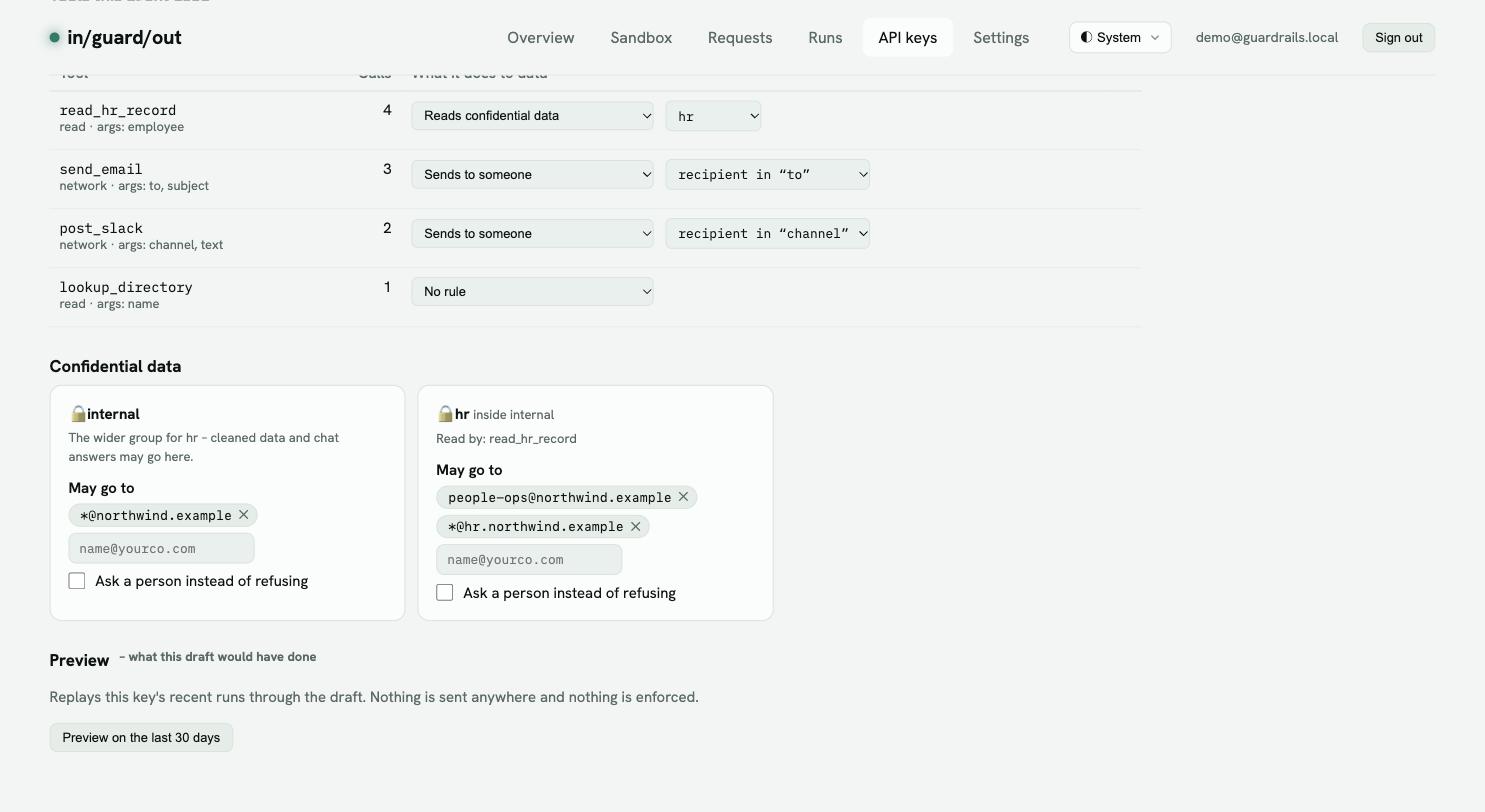
7. Preview before publishing
Click Preview on the last 30 days. Your agent’s recent runs are replayed against the draft – nothing is sent, nothing is enforced.
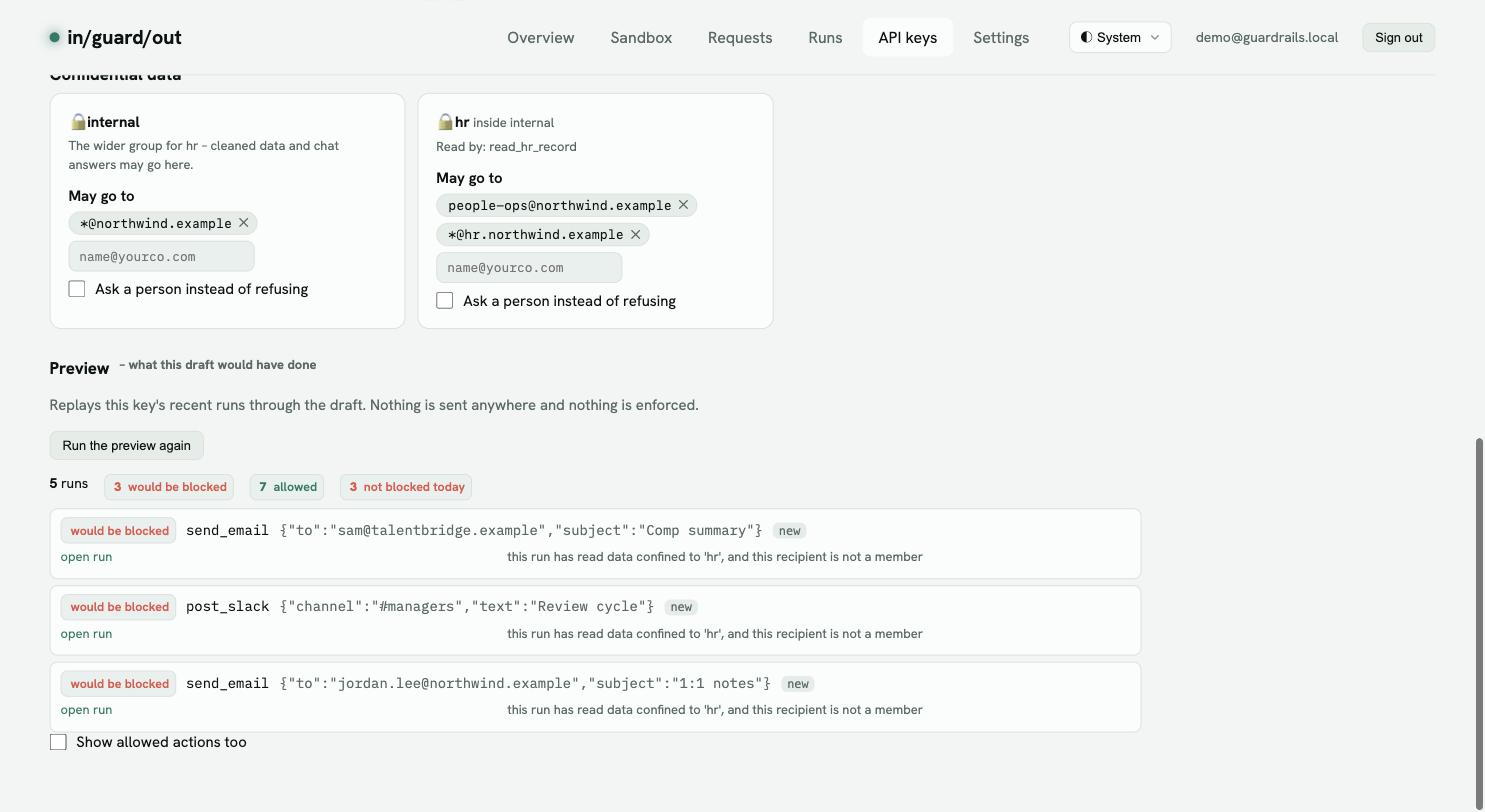
Read every line. In this example:
- sam@talentbridge.example – an outside recruiter. Blocking it is exactly the point.
- #managers – the channel isn’t a member. If managers may see HR data, add
#managersto the room. - jordan.lee@northwind.example – a manager. Not in HR, so the raw record can’t go to them. Either add them, or rely on cleaned chat answers.
Change the room, preview again, and repeat until every line is what you’d want. Then follow Preview, watch, then enforce.